¶ In this guide
If you already know what you are looking for, or if you object on principle to reading documentation from the beginning, you may jump directly to a section:
- Initial user settings
- Projects
- Configuring reusable metadata
- Adding a person
- Adding and deleting an interlinear gloss
- Assigned and stored metadata
- Notes
- Pages
- Sequences
- Bibliography
- Importing
- Searching
- Exporting
- Tab navigation
- A sensible order for learning Menkayonta
¶ Getting Started
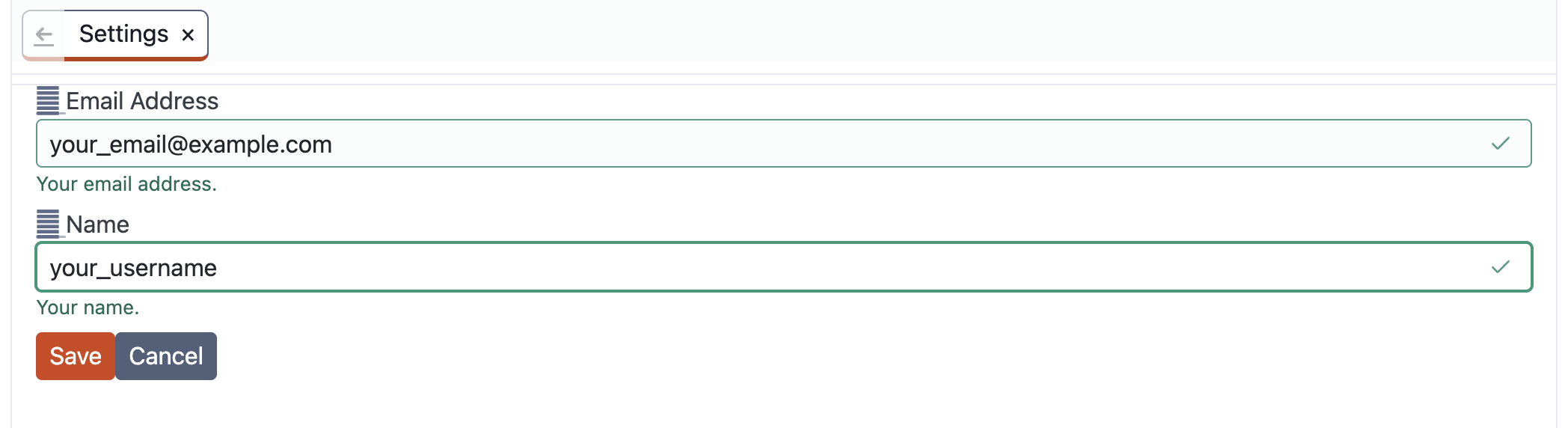
On initial startup, you will be presented with a short form. There needs to be some way to identify you in the system. Databases are much less mysterious when their changes are attributed to people rather than anonymous electrical impulses.
The Email Address field is usefully filled out with a real email address by which you would like to be identified, but this is not required. The email address may be fake.
One should not simply invent a random fake address. It may turn out to be someone’s real address, which would be an unpromising beginning to a discussion about responsible data management. The domain example.com is reserved for examples. If you do not wish to use a real address, invent a username and combine it with that domain:
catlover2000@example.com
There are advantages to using a real email address. “catlover2000” may prove to be a popular username. Your data could eventually be combined with another collection containing a different catlover2000. A real email address is less likely to collide with someone else’s identifier, and it may help collaborators contact you.
The Name field does not require a legal name or a North American-style first-and-last-name arrangement. Enter the name by which you would like to be identified in the project. It may be in any language or writing system.
Something must be entered, but putting x is not terribly informative. Menkayonta will often display the friendlier name instead of the email identifier. If everyone is named x or 99, future researchers will be left to reconstruct your identities through textual criticism.
After entering an email address and name, click Save.
You will be rewarded with a largely blank window that says Welcome! This is a genuine sentiment that I built into the program for everyone who uses it. I hope you feel welcome using the software I wrote. Thank you!
¶ Projects
Every database belongs to a project, and there is one database per project. A project also has an associated folder where files may be stored and referenced from notes and other records.
A single Menkayonta instance can contain several projects. For this reason, projects need to be easy to distinguish. Each project has:
- a title;
- a one-character key;
- a flag made from one to three colours; and
- optionally, the URL of a remote CouchDB server.
The narrow column on the far left is the project rail. Each project appears there as its key displayed over its colour flag.
¶ Adding your first project
Click the + button at the bottom of the project rail.
You may also choose File → New Project, but the + button is generally the more convenient route.
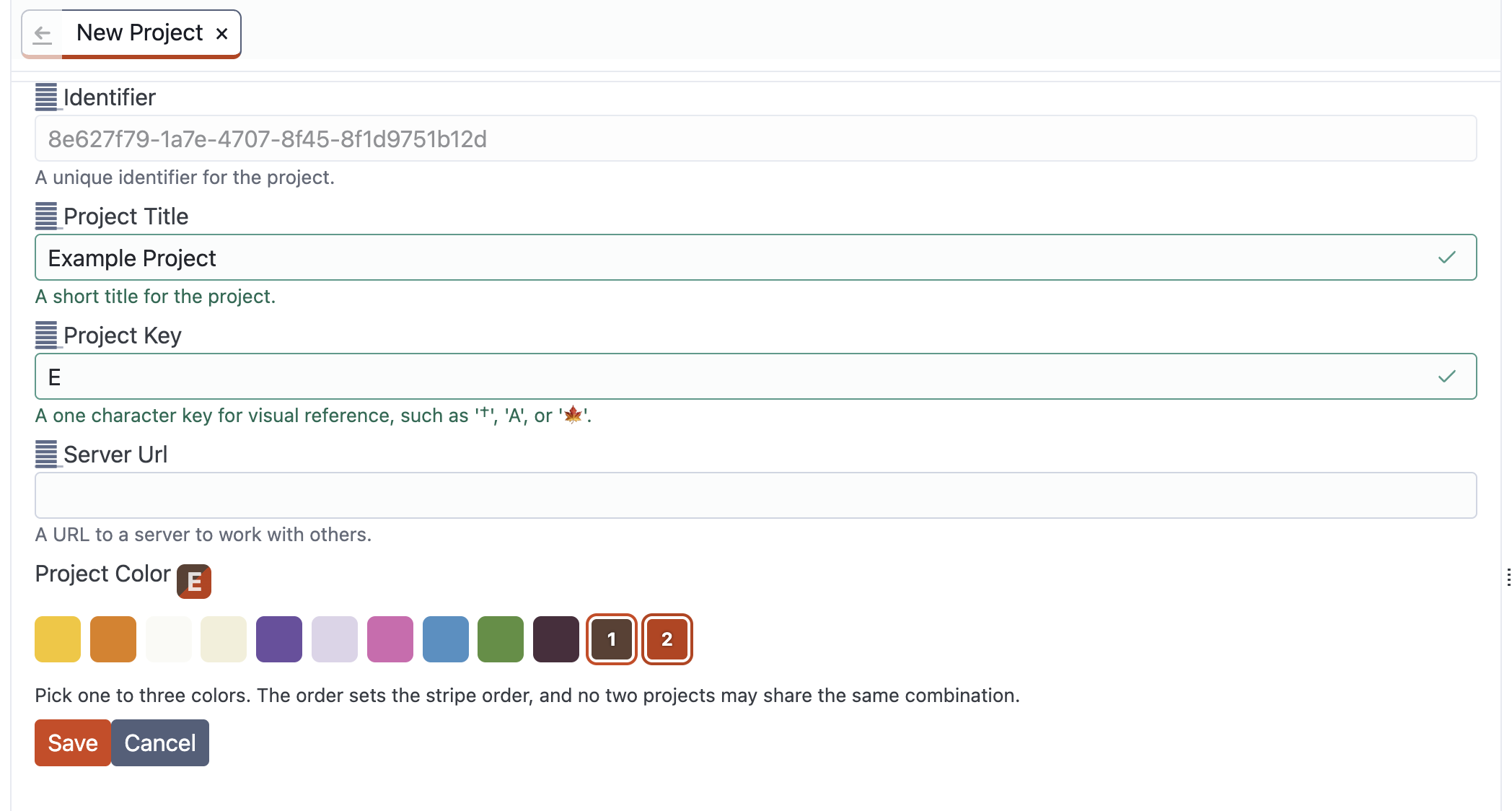
¶ Identifier
The identifier at the top of the form is generated automatically. It is extremely unlikely to be duplicated accidentally. Most users do not need to concern themselves with it unless they are doing something complicated with imports, exports, or direct database work.
¶ Project Title
The project title is the friendly name shown in the sidebar. A language name, community name, or concise research title may be useful.
Long titles may be more descriptive, but there is a point at which the title begins behaving like an abstract. Try to keep it reasonably short.
¶ Project Key
The project key is a one-character symbol used where there is little horizontal space. A letter, symbol, or emoji may be used.
For example:
E
might identify “Example Project,” while:
D
might identify “Dictionary Project.”
Each project should have a distinct key.
¶ Server URL
The Server Url is optional. Leave it blank if the database should remain only on this computer.
If you are collaborating through a CouchDB server, enter the URL supplied by the person responsible for that server. Menkayonta will use it to synchronize your local project database with the remote database.
¶ Project Color
Choose between one and three colours for the project flag.
Menkayonta suggests an available colour when a new project form opens. You may keep it or click it to remove it and choose another combination.
The order in which the colours are selected determines the order of the stripes. Two projects may not use the same colour combination. This helps make projects recognizable even when several are open at once.
Click Save when the project has a title, key, and valid colour flag.
The project will appear in the rail. Click its flag to select it and reveal its sidebar.
¶ Adding another project
To add another project, click + again and complete the same form.
Use a different title, key, and colour combination. The entire purpose of these visual distinctions is to prevent one from spending an afternoon carefully entering data into the wrong project.
¶ Local and remote databases
By default, a project database lives only on your computer. Adding a Server URL does not replace the local database. It allows that local database to synchronize with another database on a remote server.
¶ Synchronization versus a shared file
One may think of the remote database as a bank ledger, provided one does not push the metaphor so far that the database begins charging overdraft fees.
A bank and its customers may each keep records of the same activity. Those records are physically separate and may temporarily disagree. A payment may appear in one place before it appears in another.
Menkayonta synchronization works in a similar way. Your local project remains a real database. When a Server URL is supplied, changes are exchanged between the local and remote databases.
The project’s local title, key, and colours identify the project in your copy of Menkayonta. The Server URL identifies the remote database with which it synchronizes.
Access control and permissions are responsibilities of the CouchDB server. Do not assume that possessing a URL necessarily grants access, or that every server has been configured with the same rules.
¶ Intermittent connections and conflicts
Synchronization stops while your computer is offline. You may continue working locally, and other collaborators may continue working in their own copies.
When a connection becomes available again, Menkayonta reconnects and exchanges changes with the remote database.
If two people modify the same record independently, the databases may contain conflicting revisions. The currently displayed revision may not be the one you expected. Menkayonta’s Modifications metadata can document important changes, checks, and research events, but it should not be treated as a substitute for a project’s backup and conflict-management practices.
Projects using remote synchronization should decide in advance who manages the server, backups, access, and conflicts. Databases are wonderfully literal things: they will faithfully implement whatever policy one has actually created, rather than the policy everyone assumed someone else had created.
¶ The project sidebar
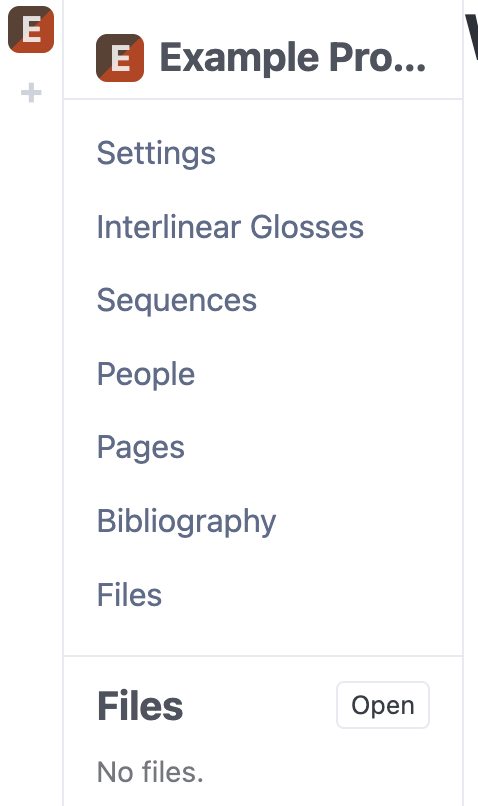
After selecting a project in the rail, its sidebar contains:
- Settings
- Interlinear Glosses
- Sequences
- People
- Pages
- Bibliography
- Files
¶ Settings
Settings allows you to change the project title, key, Server URL, and colour flag.
¶ Interlinear Glosses
This is the main listing of interlinear gloss records. It also provides controls for creating glosses, configuring reusable metadata, and exporting all records or the current search results.
¶ Sequences
Sequences organize records using keys and identifiers. They may be used to represent an ordered text, collection, narrative, elicitation session, or another meaningful arrangement of records.
¶ People
People are identified by email address and may have one or more names. They may be speakers, researchers, collaborators, consultants, reviewers, or anything else the project needs to represent.
¶ Pages
Pages are shared project documents. They may contain protocols, observations, methodological notes, instructions, or other Markdown-formatted material.
¶ Bibliography
The Bibliography stores bibliographic records that may be referenced from project data.
¶ Files
The Files area provides access to records and files associated with the project.
¶ Configuring reusable metadata
Before entering many records, it is often useful to configure metadata that will be reused.
Open a listing such as People or Interlinear Glosses, then click Configuration.
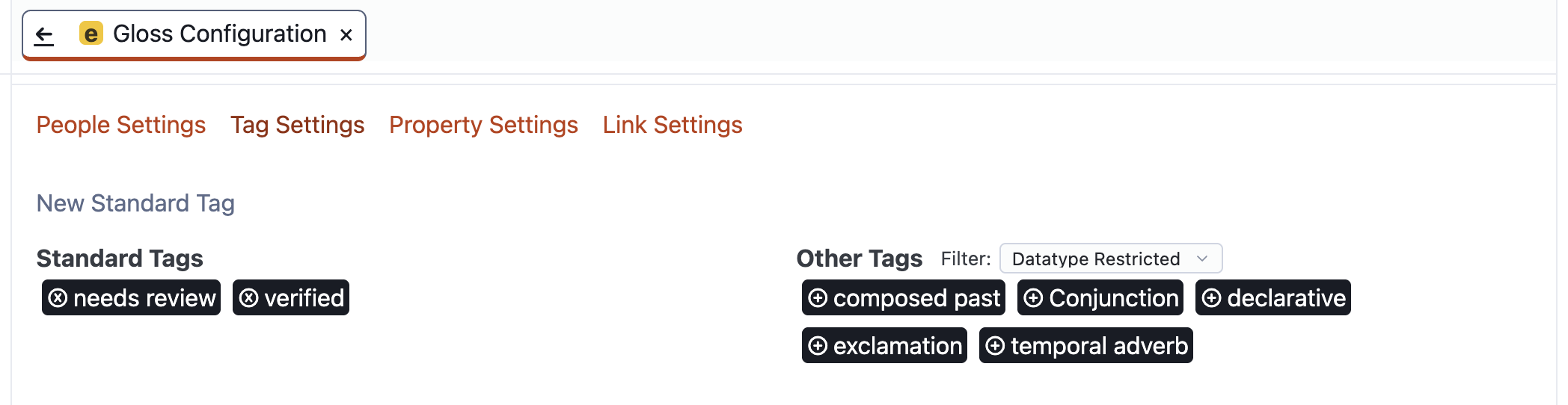
Configuration may contain:
- People Settings
- Tag Settings
- Property Settings
- Link Settings
The exact metadata needed depends on the type of record and the project.
For example, a People configuration might define these reusable properties:
| Attribute | Value |
|---|---|
| role | speaker |
| role | researcher |
An Interlinear Glosses configuration might define:
- tags such as
declarativeorelicited; - properties such as
recording quality/clear; and - people links such as
speaker/person/speaker@example.com.
People links can only refer to People who already exist. It is therefore sensible to create the project’s People before configuring reusable speaker links.
Configured metadata appears as Stored metadata when an ordinary record is opened. It can then be assigned with a single Add action.
Configuration is useful for consistency, but it is not a prison. One may still create metadata directly on an individual record when the value is specific to that record.
¶ Adding a person
Open People, then click New Person.
Enter the person’s email address. This is the identifier used by the database.
Click + Add Name and enter a name. A person may have more than one name, which is useful when different names, spellings, or writing systems are relevant.
Click Save.
The saved person opens in the main record view. From there, metadata may be assigned through the People, Tags, Properties, Links, and Modifications sections.
If the People configuration already contains role / speaker, open Properties and add that stored property rather than typing it again.
¶ Adding and deleting an interlinear gloss
Open Interlinear Glosses, then click New Interlinear Gloss.
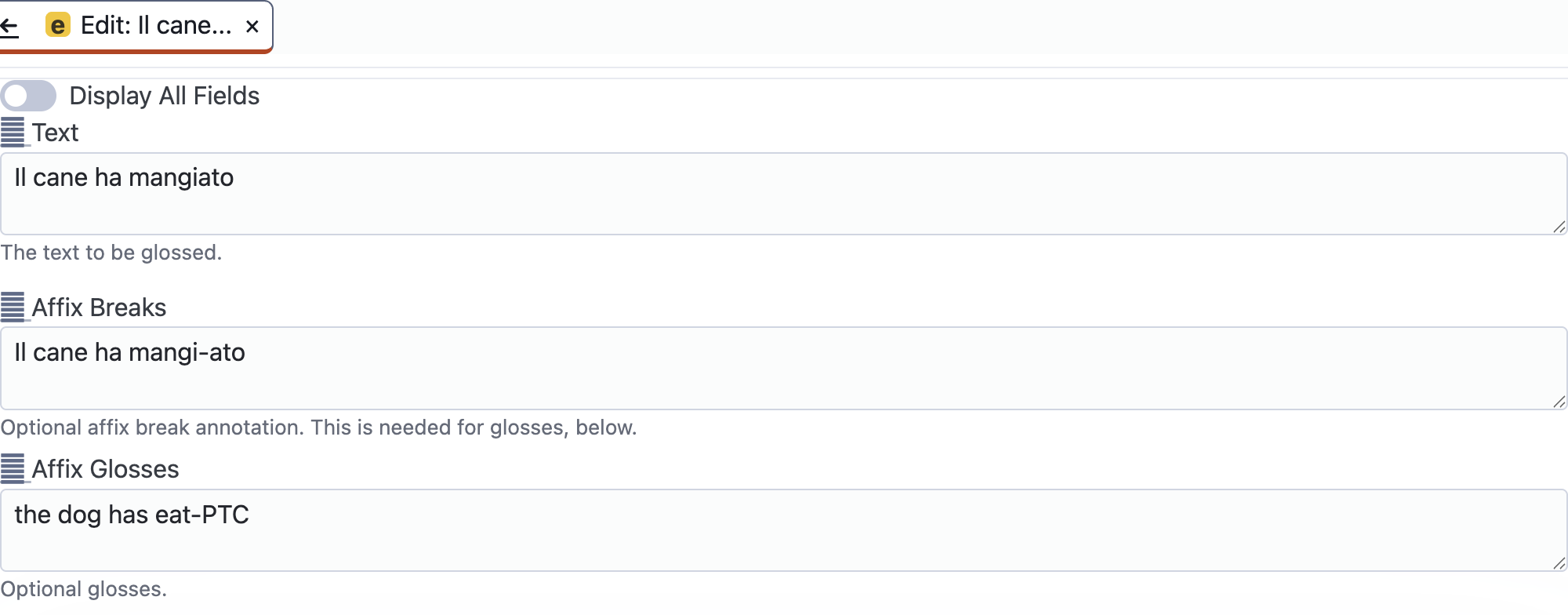
The project key and flag in the tab identify the project that will receive the new gloss.
¶ Displaying optional fields
To keep the form manageable, Menkayonta initially displays Text and the optional annotation fields used in more than one fifth of the project’s existing interlinear glosses. The fields shown by default may therefore differ from one project to another.
Turn on Display All Fields to reveal every optional annotation field. Turn it off to return to the shorter form. This changes which fields are visible; it does not remove their contents.
¶ Text
The Text field contains the text to be glossed. It is the only required field.
“Text” is intentionally broader than “transcription.” Not every item is transcribed from a recording, and future transcription systems may need to make finer distinctions.
¶ Text Judgment
The optional Text Judgment field may contain a symbol such as * or #, or another notation used by the project.
¶ Phonemic Transcription
The optional Phonemic Transcription field may contain a phonemic representation.
¶ Alternate Orthography
The optional Alternate Orthography field may contain another orthographic representation of the text.
¶ Affix Breaks
The optional Affix Breaks field contains token and morpheme divisions, including hyphens where appropriate.
If Affix Glosses are supplied, the number of tokens in the breaks and glosses lines must agree.
¶ Affix Glosses
The optional Affix Glosses field contains glosses corresponding to the units in Affix Breaks.
The number of tokens must match, and the internal affix divisions must agree. A mismatch produces a validation error and prevents the record from being saved.
This is preferable to silently storing a four-part morphological analysis above a five-part gloss and leaving the mystery to the next generation.
¶ Translations
A gloss may have zero or more translations.
Click + Add Translation to add one.
Each added translation contains:
- Translation
- Translation Judgment
- Remove Translation
Once a translation row has been added, its Translation field cannot be blank. The judgment remains optional.
Use Remove Translation to mark an existing translation for removal. This can be reversed before the form is saved.
¶ Saving and viewing the gloss
Click Save when the form is valid.
The saved gloss opens in its main record view. Its navigation includes actions such as:
- Edit
- Duplicate
- Note
- Export
The record also has metadata sections:
- People
- Tags
- Properties
- Links
- Modifications
¶ Deleting an interlinear gloss
Open the saved gloss and scroll to the bottom of the record. The Delete button appears below the gloss itself.
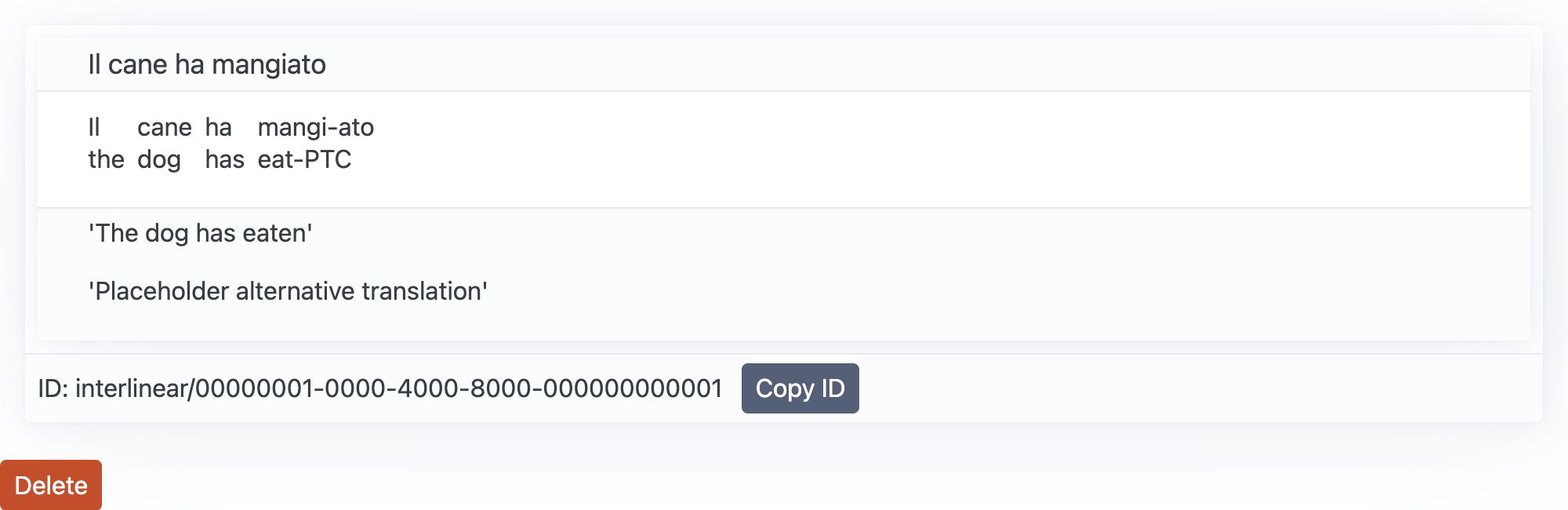
Click Delete to remove the gloss. Menkayonta also removes its assigned tags, properties, and links, together with its note and reverse links. It then closes the tab and returns to the Interlinear Glosses listing.
Deletion does not cause the data to vanish from the database in a puff of administrative smoke. The record is marked as deleted and suppressed from ordinary listings. It remains recoverable in principle unless it is removed through a separate database purge process. Menkayonta does not currently provide controls for either recovery or purging within the app, although both actions are possible through direct database-level interventions.
¶ Assigned and stored metadata
The current metadata interface distinguishes between values assigned to this record and values already known elsewhere in the project.
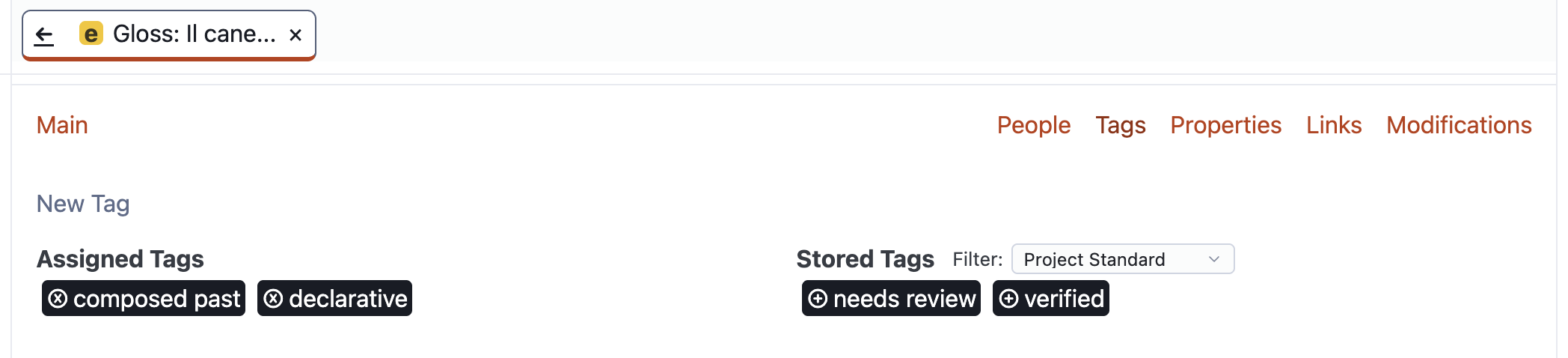
For example, the Tags section shows:
- Assigned Tags
- Stored Tags
The Properties section shows:
- Assigned Properties
- Stored Properties
People and other links follow the same pattern.
¶ Adding a new tag
Open Tags and click New Tag.
Enter the tag and save it. The tag then appears under Assigned Tags.
A stored tag may instead be assigned by clicking Add beside it.
¶ Adding a property
Open Properties and click New Property.
Enter an attribute and value, then save. The property appears under Assigned Properties.
For example:
| Attribute | Value |
|---|---|
| language | Kichwa |
Stored properties defined in Configuration may be assigned directly without recreating them.
¶ People links
The People section contains links to project People, such as:
| Relation | Person |
|---|---|
| speaker | person/speaker@example.com |
| researcher | person/researcher@example.com |
Configured links appear under Stored People Links.
¶ General links
The Links section can connect a record to another project record or identifier using a project-defined relation.
¶ Metadata filters
Stored metadata can be filtered by scope:
- Project Standard
- Datatype Restricted
- All
Project Standard emphasizes values explicitly placed in Configuration.
Datatype Restricted includes values previously used by the same kind of document.
All allows suggestions from the entire project.
This makes it possible to encourage consistency without pretending that all data types share exactly the same conceptual universe.
¶ Modifications
Modifications record an attribute, time, and person associated with an important event.
Examples might include:
elicitationenteredreviewedvalidated
Modifications are entered directly on a record. They are not currently supplied through Configuration.
¶ Notes
Most project records may have a Markdown note.
Open a saved gloss, person, sequence, bibliography entry, or file record and click Note.
The Note opens in its own tab. It provides enough context to identify the associated record.
Click Edit to modify the Markdown source. Click Preview to see the rendered result.
When the note has changed, Save and Discard changes controls appear.
Markdown can be used for headings, emphasis, lists, links, quotations, code, and other structured writing.
For example:
## Context

The speaker was answering a question about what the dog had done.

## Observation

There was a short pause after the subject.
¶ Pages
Pages use the same Markdown capabilities as notes, but they are presented as shared project documents rather than metadata attached to another record.
Open Pages, then click New Page.
Enter:
- a title; and
- a short description.
After saving, the Page displays its title, description, and Markdown content together.
Use the pencil control beside the heading to edit the title and description. Use Edit and Preview to switch the Markdown content between source and rendered views.
¶ Editing and previewing side by side
Pages are particularly useful in a split workspace.
- Open a Page.
- Double-click its tab to clone it.
- Move one copy to the right using the tab’s context menu.
- Leave the left copy in Preview.
- Put the right copy in Edit.
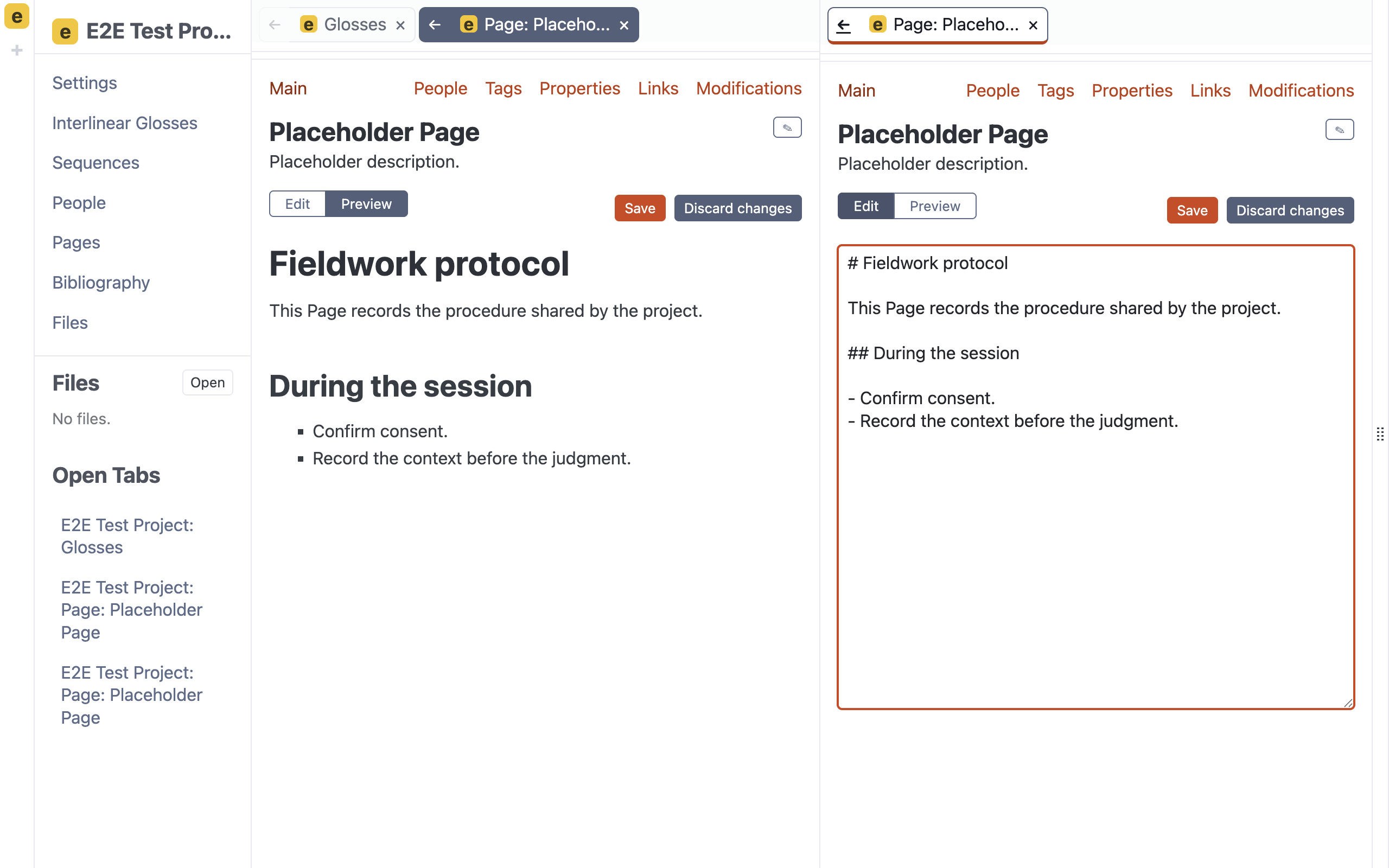
As text is entered in the editor, the cloned Preview updates immediately. Pressing Save persists the changes; it is not necessary merely to refresh the other preview.
This arrangement is useful for protocols, project documentation, observations, and any other situation where seeing rendered Markdown while writing it is less taxing than mentally performing Markdown compilation oneself.
¶ Sequences
Open Sequences, then click New Sequence.
A sequence has:
- a title;
- a description;
- a sequence kind; and
- one or more keyed identifiers.
Click + Add Item for each record that belongs in the sequence.
A convenient workflow is to place the sequence form beside the listing containing the records:
- Open the record listing.
- Start the new sequence.
- Move the sequence tab into a separate group.
- Click Copy ID on a record.
- Paste the identifier into the corresponding sequence item.
- Give the item a key representing its place or role in the sequence.
This permits records to be organized without duplicating their contents.
¶ Bibliography
Open Bibliography, then click New Entry.
Bibliographic entries include fields such as:
- Title
- Key
- Author
- Year
- Source Type
- Journal
- Booktitle
- Editor
- Pages
- Publisher
- Institution
- School
- Crossref
Only complete the fields relevant to the source type and project.
¶ Importing
Obviously, anyone using a database system like this will be interested in searching it. Before one can do this, one needs some data to search. Former users of Dative may already have a large amount of material stored in an existing database.
¶ Downloading the data from Dative
First, sign in to Dative and open the database whose forms you want to transfer.
From the Forms menu, choose Browse. If you intend to move the complete collection into Menkayonta, make sure that Dative says that you are browsing all forms. If you are browsing the results of a search, Dative will export only the forms belonging to that search.
Select the download button in the controls above the form listing. It is represented by a downward-pointing arrow.
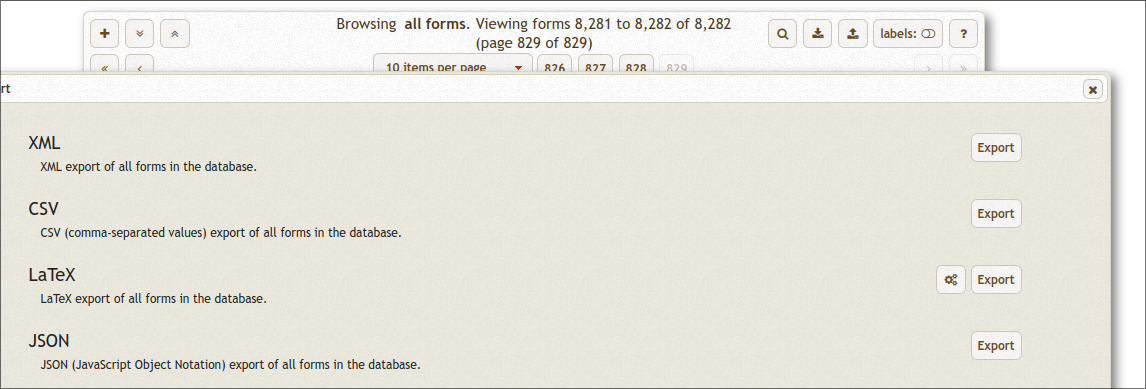
Dative will open its Export window. Find the JSON section and select its Export button. Do not choose CSV: Menkayonta expects Dative’s JSON representation of the forms.
Dative performs this operation in two stages. Selecting Export generates the file. When it is ready, a filename ending in .json appears as a link. Select that filename to download the file to your computer.
The filename will usually resemble:
forms-2026-08-21T14:30:00.000Z.json
Your browser may save it automatically in the Downloads folder or ask where it should be placed. Remember where it was saved. Menkayonta cannot import a file that both researcher and computer have subsequently misplaced.
¶ Importing the file into Menkayonta
Before importing, create the Menkayonta project that should receive the data.
Choose File → Import File, then select the JSON file downloaded from Dative.
The Import Options form contains:
- File Path
- Import Type
- Project
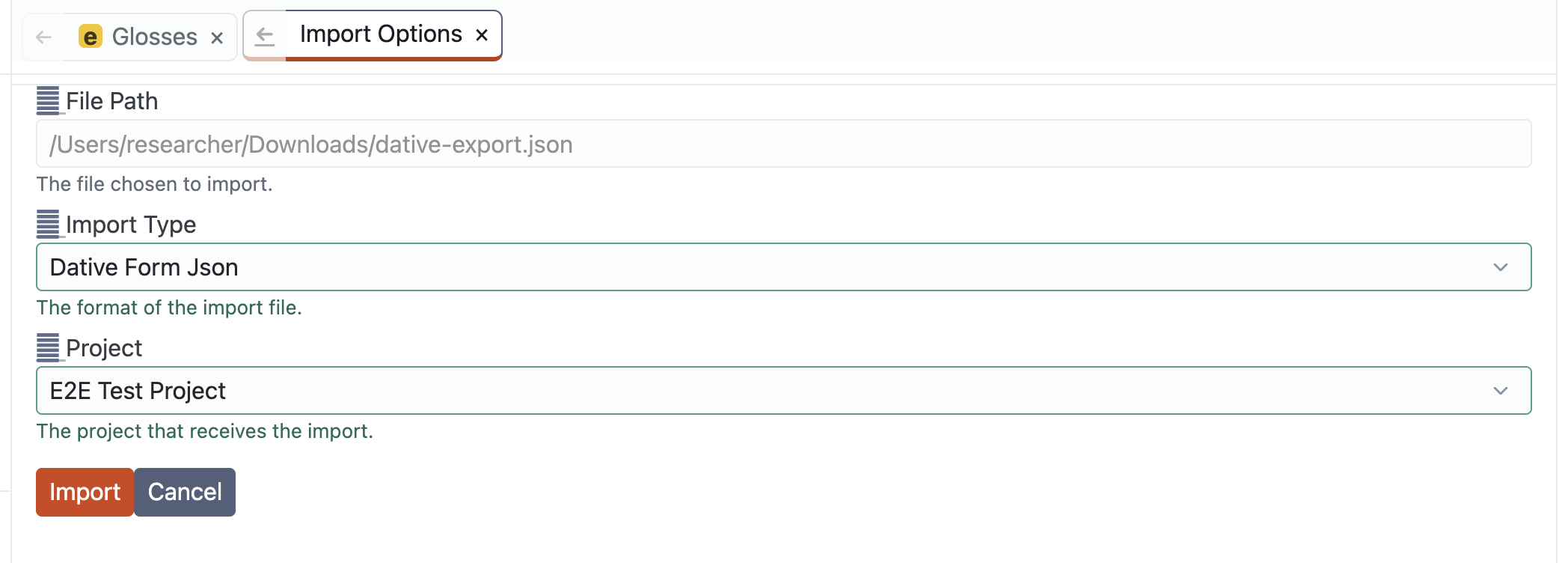
The File Path is filled automatically from the file you selected.
Under Import Type, choose:
Dative Form Json
Under Project, choose the Menkayonta project that should receive the imported forms. Check this selection carefully when more than one project exists. Menkayonta has no way of knowing that the language with a similar name was not the one you intended.
Select Import to begin.
Menkayonta converts the Dative forms into Interlinear Glosses and writes them to the selected project. The project’s activity indicator shows that the database is being indexed. A large import may take some time, so wait for this activity to finish before concluding that records are missing. Do not select Import repeatedly merely because the results have not appeared immediately.
When indexing has finished, open Interlinear Glosses for the destination project. The imported Dative forms should now appear in the listing.
¶ Importing a Menkayonta export
The other available Import Type is:
Menkayonta Export
Use this when the file was previously created using Menkayonta’s own export function. It preserves Menkayonta records and their database relationships and is different from a Dative Form Json file.
In short:
- Use Dative Form Json for the
.jsonfile downloaded from Dative’s Forms export interface. - Use Menkayonta Export for a structured export previously created by Menkayonta.
Both files may end in .json. The extension tells the computer how the text is arranged in general; it does not tell Menkayonta which application arranged it.
¶ Searching
A database is not terribly useful if one can put things into it but cannot find them again. This is particularly true of linguistic databases, where one may remember that there was a very interesting example involving a dog, but not whether the dog ate something, stole some bread, or merely supplied an unusually clear instance of differential object marking.
Each listing has a search field. An empty search displays all the records in that listing. As one types, the listing is filtered according to the query.
The search language is inspired by Lucene Query Syntax, but it is not a complete implementation of Lucene. I have included the parts that are currently useful and predictable. Some additional syntax can be recognized by the parser but is not yet acted upon by the search system. A computer accepting one’s punctuation without complaint is not always the same thing as the computer doing what one intended.
¶ The default is a substring search
The simplest search is just some text:
dog
By default, Menkayonta looks for that text anywhere inside any searchable field in the current listing.
For example, dog matches:
The dog has eaten.
It also matches:
A dogmatic refusal
because dog occurs inside dogmatic. This is a substring search, not a whole-word search.
This default is intended to be forgiving. Researchers often remember only a fragment of an example, title, name, or translation. Requiring the complete field would make the most ordinary searches unnecessarily fussy.
The fields searched depend on the kind of listing.
For Interlinear Glosses, a plain search examines:
- Text
- Text Judgment
- Phonemic Transcription
- Affix Breaks
- Affix Glosses
- Translation
- Translation Judgment
For Sequences, a plain search examines:
- Title
- Description
For People, it examines:
- Email identifier
- Names
For Pages, it examines:
- Title
- Description
For Files, it examines:
- Name
- Filename
For Bibliography, it examines:
- Title
- Key
A plain lowercase search is case-insensitive. Therefore:
dog
matches dog, Dog, and DOG.
If the query contains an uppercase letter, it becomes case-sensitive:
Dog
matches Dog, but not dog or DOG.
This allows most searches to be conveniently case-insensitive while making it possible to distinguish capitalization when it carries useful information.
¶ Several words are alternatives unless you say otherwise
If several terms are separated only by spaces, Menkayonta treats them as alternatives.
For example:
dog cat
means:
dog OR cat
It returns records containing either dog or cat.
Some search systems assume that a space means AND. Menkayonta currently assumes OR. Neither convention is self-evidently ordained by nature, so it is worth stating ours explicitly.
If both terms must occur, write:
dog AND cat
¶ Boolean operators
Menkayonta supports three Boolean operators:
ANDORNOT
These operators must be written in uppercase.
Lowercase and, or, and not are treated as ordinary search terms. This is useful when searching natural-language data, where the word “and” may be precisely what one wants, but it does mean that capitalization matters when constructing a Boolean expression.
¶ AND
AND requires both expressions to match:
dog AND eaten
This returns records containing both dog and eaten.
They do not need to occur beside one another or in the same field. One could occur in Text and the other in a Translation.
¶ OR
OR requires at least one expression to match:
dog OR cat
This returns records containing dog, cat, or both.
¶ NOT
NOT excludes records matching the expression that follows it:
dog AND NOT cat
This returns records containing dog, provided they do not also contain cat.
NOT may also be applied to a grouped expression:
dog AND NOT (cat OR mouse)
This requires dog and excludes records containing either cat or mouse.
¶ Grouping complex expressions
Round parentheses may be used to group parts of a Boolean expression:
(dog OR cat) AND eaten
This requires:
- either
dogorcat; and eaten.
The parentheses are important because AND is evaluated before OR.
Without parentheses:
dog OR cat AND eaten
the search is interpreted as:
dog OR (cat AND eaten)
Every record containing dog would match, even if it did not contain eaten.
Parentheses may be nested:
(dog OR cat) AND (eaten OR sleeping)
This requires one expression from each group.
Use round parentheses, not square brackets. Square brackets belong to other parts of Lucene-style syntax that are not currently implemented by the matcher.
¶ Quotation marks and phrases
Quotation marks keep several words together as one expression.
Without quotation marks:
black dog
means:
black OR dog
With quotation marks:
"black dog"
the phrase black dog must occur in that order.
It matches:
The black dog was sleeping.
It does not match:
The dog was black.
For ordinary textual fields, the quoted phrase remains a substring search. The complete field does not need to equal black dog; the phrase may occur inside a longer sentence.
Quotation marks are particularly important for metadata because metadata normally uses exact-value matching.
For example:
tag:"follow-up needed"
searches for the exact tag:
follow-up needed
Without quotation marks, the space would divide the value into separate search expressions.
Properties contain both an attribute and value, separated by /:
prop:"recording quality/clear"
This searches for the exact property whose attribute is recording quality and whose value is clear.
Exact metadata searches are case-sensitive. The capitalization must match the stored metadata. If one is unsure of the exact spelling, clicking the displayed metadata is often easier than typing it.
¶ Wildcards
The asterisk * is a wildcard meaning zero or more characters.
For example:
th*d
matches text in which th occurs before d, with any amount of material between them.
It may match:
the dog
this was discussed
thundered
The literal pieces must occur in the specified order. Therefore:
dog*cat
matches:
The dog chased the cat.
but:
cat*dog
does not match that sentence.
Several wildcards may be used:
cat*dog*mouse
This requires cat, then dog, then mouse, in that order.
The asterisk may represent no characters at all, so dog*cat also matches dogcat.
The question mark ? is not currently supported as a one-character wildcard.
¶ Wildcards in ordinary document text
Ordinary textual searches already behave as substring searches. Menkayonta therefore assumes that a wildcard expression may occur anywhere inside a document field.
These searches will often return the same records:
dog
dog*
*dog*
All three can find dog inside a longer field.
This may initially make the wildcard seem rather decorative. It becomes useful when it expresses a relationship between two or more pieces that one remembers.
For example:
th*d
requires th to occur before d.
Likewise:
can*ato
can match:
Il cane ha mangiato
because can occurs before ato, regardless of the material between them.
The wildcard is therefore most useful in textual fields when one knows several parts of an expression but is uncertain about what connects them.
¶ Wildcards in metadata
Metadata behaves differently. A metadata value without a wildcard must match exactly, and a metadata wildcard is applied to the complete stored value.
For example:
tag:John
matches only the exact tag John.
tag:John*
matches tags beginning with John.
tag:*John
matches tags ending with John.
tag:*John*
matches tags containing John anywhere.
A wildcard in the middle preserves both the beginning and ending:
tag:WM*2026
This may match:
WM-discussion-2026
It does not match:
prefix-WM-discussion-2026-suffix
because the stored tag does not begin with WM or end with 2026.
To include additional material at both ends, write:
tag:*WM*2026*
Do not put quotation marks around a wildcard pattern:
tag:"John*"
Quotation marks make the asterisk literal. This query looks for an exact tag actually named John*, which is possible but probably not what was intended.
If the metadata contains spaces and one knows the exact value, use quotation marks:
tag:"follow-up needed"
If the uncertain material includes the spaces, use a wildcard:
tag:follow-up*needed
¶ Field-specific searches
A field-specific search has this form:
field:query
It restricts the query to one field instead of searching every searchable field in the document.
The supported textual fields for Interlinear Glosses are:
textjudgmentphonemicbreaksglossestranslationtranslation_judgment
These fields use substring matching.
For example:
translation:dog
finds dog anywhere in a Translation. It does not match dog occurring only in Text or Affix Glosses.
glosses:PTC
searches only the Affix Glosses field.
Because PTC contains uppercase letters, that search is case-sensitive.
Wildcard searches in these textual fields also occur within the field. Therefore:
translation:dog
and:
translation:dog*
will usually produce the same results.
A wildcard connecting two remembered pieces is more informative:
translation:dog*eaten
This requires dog to occur before eaten in the same Translation.
The field restriction applies to each expression separately. To search for either of two glosses, write:
glosses:NOM OR glosses:ACC
rather than assuming that one field name automatically extends across a complicated expression.
¶ Metadata fields
The supported metadata fields are:
tagattrproplattrlink_attrlink
These fields use exact matching unless an explicit wildcard is supplied.
¶ Tags
A tag search uses the complete tag:
tag:declarative
For a tag containing spaces:
tag:"composed past"
¶ Property attributes
attr searches the attribute of a property without requiring a particular value:
attr:language
For an attribute containing spaces:
attr:"recording quality"
¶ Properties
prop searches an attribute and value together, separated by /:
prop:"language/Kichwa"
prop:"recording quality/clear"
A wildcard may be used if part of the stored property is unknown:
prop:recording*quality/clear
¶ Link attributes
lattr and link_attr are two names for searching the relation used by a link:
lattr:speaker
or:
link_attr:speaker
¶ Complete links
link searches the relation, value kind, and value together.
A People link commonly has this form:
link:"speaker/person/federico.fellini@example.com"
This is exact and rather long. Clicking a displayed link is often more pleasant than typing it, especially for anyone whose research methodology does not include memorizing database identifiers.
¶ Searching by clicking metadata
Tags, property attributes, property values, and links displayed on a record may be clicked.
Menkayonta then opens the appropriate listing and constructs the metadata search from the stored value.
This avoids errors involving:
- capitalization;
- spaces;
- punctuation;
- slashes;
- email addresses; and
- long identifiers.
Typing metadata queries remains useful when combining them with Boolean expressions, text fields, or wildcards.
¶ Other details worth knowing
An incomplete query returns no results.
Common examples include:
"unclosed quotation
(dog AND cat
dog AND
If a search unexpectedly empties the listing, check for an unfinished quotation mark, parenthesis, field, or Boolean operator.
The search language recognizes more Lucene-like syntax than the matcher currently implements. For now, do not rely on:
?single-character wildcards;- regular expressions;
- fuzzy searches;
- proximity searches;
- ranges;
- relevance boosts;
+required-term syntax; or-prohibited-term syntax.
The useful and implemented tools are:
- plain substring searches;
- quoted phrases;
AND,OR, andNOT;- round parentheses;
*wildcards;- field-specific searches; and
- metadata searches.
This is already enough to construct queries of considerable specificity, and perhaps enough punctuation for a Getting Started guide.
¶ A complete example
Suppose I want to find Interlinear Glosses satisfying all of the following conditions:
- The gloss has either the exact tag
composed pastor the exact tagdeclarative. - It has the exact property
recording quality/clear. - Its Text contains
can, followed later byato. - Its Translation does not contain
steal.
The complete query is:
(tag:"composed past" OR tag:declarative) AND prop:"recording quality/clear" AND text:can*ato AND NOT translation:steal
This looks formidable only because it says several things at once. We can take it apart.
(tag:"composed past" OR tag:declarative)
The parentheses make the two tag searches one group. The first tag needs quotation marks because it contains a space. A record may have either tag.
AND prop:"recording quality/clear"
The record must also have the exact property recording quality / clear. The quotation marks keep the complete attribute-and-value pair together.
AND text:can*ato
The Text must contain can, followed later by ato.
This can match:
Il cane ha mangiato
The wildcard spans the unknown material between the two remembered pieces.
AND NOT translation:steal
Finally, any record whose Translation contains steal is excluded.
The query therefore combines:
- exact metadata;
- an
ORgroup; - several
ANDconditions; NOT;- field-specific searches; and
- a wildcard.
Read from left to right, it says almost exactly what the numbered description said. The punctuation merely makes the request unambiguous to a computer, which has many virtues but very little ability to infer that one “obviously meant” something else.
¶ Exporting
A database from which nothing can be removed is less a research tool than a particularly well-organized oubliette. Menkayonta therefore provides several kinds of export, depending on whether one wants to preserve a project, analyze a collection of records, or insert a single example into a publication.
The exporter is currently reached through Interlinear Glosses. This is worth noting because the scope varies by format:
- A complete Menkayonta Format export contains the entire project database, including records that are not Interlinear Glosses.
- Search-result, table, LaTeX, and plain-text exports are organized around selected Interlinear Glosses.
- An individual gloss can be exported by itself, together with the metadata and referenced records needed to make the selection meaningful.
These exports serve different purposes. A Menkayonta export preserves the database structure and can be imported into Menkayonta. A table export is intended for statistical or other external analysis. LaTeX and plain-text exports produce human-readable examples for publications, presentations, handouts, and similar respectable uses.
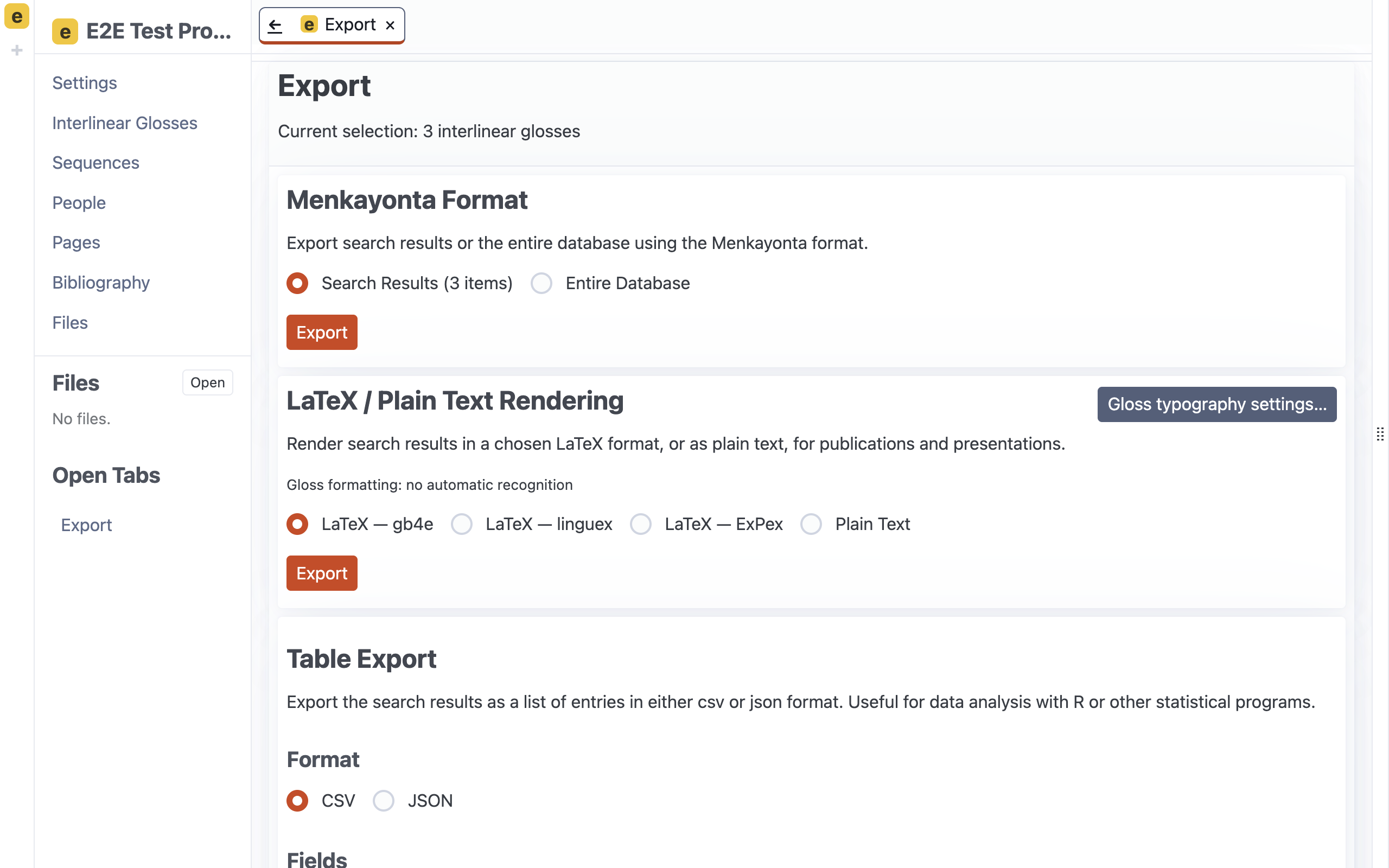
¶ Exporting an entire database
To export the complete database for the current project:
- Open Interlinear Glosses from the project sidebar.
- Select Export All/Search Results at the top of the listing.
- Under Menkayonta Format, select Entire Database.
- Select Export.
- Choose where the file should be saved.
The resulting file has a name resembling:
menkayonta-export-<project identifier>.json
This is Menkayonta’s structured export format. It contains all the documents in the project database, including Interlinear Glosses, Sequences, People, Pages, Bibliography records, Files, notes, tags, properties, links, configuration records, and other associated data.
This is the appropriate format when the object of the exercise is to preserve or transfer a Menkayonta project rather than merely obtain a readable copy of its examples. It can later be selected as a Menkayonta Export when importing data.
The file is JSON, but it should not be confused with the flattened JSON available under Table Export. Both use JSON syntax, just as both a novel and a tax return may contain sentences, but they are arranged for quite different purposes.
¶ Exporting search results
To export a particular collection of Interlinear Glosses:
- Open Interlinear Glosses.
- Enter a search that leaves the desired records in the listing.
- Select Export All/Search Results.
- Check the Current selection count at the top of the Export page.
- Choose the desired export format and select the corresponding Export button.
The current selection includes the glosses matching the search. If the search field is empty, it includes all the Interlinear Glosses in the listing.
For a structured Menkayonta export, leave Search Results selected under Menkayonta Format. Menkayonta exports the selected glosses together with their attached metadata and relevant referenced records, such as People and Bibliography sources. This produces a selection that Menkayonta can understand when it is imported elsewhere, rather than a collection of gloss records detached from everything that explains them.
The Search Results and Entire Database radio buttons apply only to Menkayonta Format. Table, LaTeX, and plain-text exports always use the current selection shown at the top of the Export page.
¶ Exporting a single Interlinear Gloss
A single gloss can be exported in either of two ways.
From the Interlinear Gloss listing:
- Find the desired gloss.
- Select Export beside that entry.
Alternatively:
- Open the gloss.
- Select Export from its navigation controls.
The Export page should report:
Current selection: 1 interlinear gloss
One may then export the gloss in Menkayonta Format, as a one-row table, as plain text, or in one of the supported LaTeX formats.
A single-item Menkayonta export includes the gloss and its associated database material. A single-item LaTeX or plain-text export produces a conveniently copyable example. Which is preferable depends on whether the recipient is another database or a human being.
¶ Menkayonta Format
Menkayonta Format is the loss-preserving export. It saves a .json file containing database documents in a form that Menkayonta can import.
Use it when:
- preserving or transferring an entire project;
- moving a selected collection between Menkayonta projects;
- retaining attached notes, tags, properties, links, and references; or
- keeping the internal structure of the records intact.
This is not intended to be a particularly pleasant format for direct reading or statistical analysis. Its first obligation is fidelity.
¶ Table exports
A Table Export flattens the selected Interlinear Glosses into rows suitable for R, spreadsheets, statistical programs, or scripts.
The supported table formats are:
- CSV
- JSON
The fields can be selected before exporting. They include:
idtypeversiontextjudgmentbreaksglossesphonemicalternatetranslation_counttranslationsspeakerssourcessource_keyssource_rawtagspropertiesnotes
Select Select All to include every available field. If no reduced set is specified, Menkayonta uses the complete default set.
CSV is usually the most convenient choice for a spreadsheet or statistical package. JSON retains a more explicit distinction between field names and values and may be preferable for further processing by software. These flattened exports are intended for analysis; they are not substitutes for a Menkayonta Format export and cannot be expected to reconstruct the complete database.
¶ Plain-text rendering
Under LaTeX / Plain Text Rendering, select Plain Text and then Export.
Menkayonta displays the rendered text in the Export tab. Select Copy All to copy it to the clipboard, after which it can be pasted into a document, presentation, email, or text file.
Plain-text output includes the linguistic lines and translations. It also presents speakers, sources, tags, and properties as labeled text. Because it is meant for reading rather than database restoration, it does not preserve every internal field in the manner of Menkayonta Format.
¶ LaTeX rendering
Menkayonta can produce LaTeX source for three systems commonly used to typeset linguistic examples:
- gb4e
- linguex
- ExPex
These are not merely cosmetic choices. Each package has its own commands for numbered examples, aligned interlinear glosses, translations, and judgments. Menkayonta generates source using the commands expected by the selected package.
Choose one of:
- LaTeX — gb4e
- LaTeX — linguex
- LaTeX — ExPex
Then select Export. The generated LaTeX appears in the Export tab. Select Copy All and paste it into a LaTeX document containing the corresponding package:
\usepackage{gb4e}
or:
\usepackage{linguex}
or:
\usepackage{expex}
Only the package matching the selected export format should be assumed by the generated commands.
Menkayonta produces an export fragment, not a complete standalone document. It supplies the examples and some explanatory comments, but it does not add a document class, begin and end the document, or make decisions about the rest of one’s preamble. Such decisions are best left to the author, who may already have accumulated a preamble of considerable antiquity and emotional significance.
¶ Unicode and LaTeX
Menkayonta preserves Unicode characters in LaTeX exports. It does not attempt to turn every accented letter, IPA symbol, or character from a non-Latin writing system into an older LaTeX command.
The exported source should therefore be compiled using either:
- XeLaTeX, or
- LuaLaTeX.
For a complete document, the preamble will normally include:
\usepackage{fontspec}
A minimal document using gb4e might therefore begin:
\documentclass{article}
\usepackage{fontspec}
\usepackage{gb4e}

\begin{document}

% Paste the Menkayonta export here.

\end{document}
The corresponding linguex or expex package can be substituted when that export format has been selected.
The chosen font must contain the characters used in the data. XeLaTeX and LuaLaTeX understand Unicode input, but neither can persuade a font to contain a glyph that the font designer neglected to put there. If a character is absent, select a suitable OpenType font with fontspec.
The beginning of every Menkayonta LaTeX export includes comments reminding the user that Unicode is preserved and recommending XeLaTeX or LuaLaTeX. Compiling the fragment with pdfLaTeX may produce errors or missing characters, particularly with IPA, combining marks, and non-Latin scripts.
Menkayonta escapes several characters that ordinarily have special meaning to LaTeX. Custom LaTeX gloss renderings are an exception: they are inserted exactly as entered so that they can contain genuine LaTeX commands.
¶ Configuring the typography of gloss labels
The Gloss typography settings… button controls how grammatical labels on the gloss line are rendered in LaTeX.
These are personal application settings rather than project data. They apply to LaTeX exports made by the current Menkayonta installation, and they affect only the gloss line. They do not automatically alter the original text, the morphological-break line, translations, or the values stored in the database.
Under Automatic small capitals, three behaviours are available.
¶ No default recognition
Gloss labels are exported as entered, except where a custom rendering has been defined.
This is the most conservative option. Menkayonta makes no attempt to decide that an uppercase expression must be a grammatical abbreviation rather than, for example, an unusually emphatic lexical gloss.
¶ Standard Leipzig abbreviations in small capitals
Menkayonta recognizes standard uppercase Leipzig-style grammatical abbreviations and renders them using \textsc{...}.
For example:
ERG
becomes:
\textsc{erg}
Person-and-number expressions such as 1SG, 2DU, and 3PL are also recognized.
This option is useful when uppercase lexical glosses should remain uppercase but familiar grammatical abbreviations should appear in small capitals.
¶ All-uppercase glosses in small capitals
Every uppercase gloss expression is rendered in small capitals.
For example:
DOG
becomes:
\textsc{dog}
This is convenient for projects in which uppercase spelling consistently identifies grammatical or glossing labels. It is less appropriate when uppercase lexical glosses must remain distinguishable from grammatical abbreviations.
¶ Custom gloss renderings
Custom renderings allow a particular gloss expression to be replaced by explicitly supplied LaTeX.
Select Add rendering, then provide both:
- the expression as it appears in the gloss; and
- the LaTeX that should replace it.
For example:
DUP → \textsc{dup}
or:
MsgP → \textsc{MsgP}
Matching is case-sensitive and applies to a complete gloss expression. DUP and dup are therefore not interchangeable. Custom renderings take priority over automatic small-capital recognition.
The LaTeX side is inserted exactly as entered. This permits specialized formatting:
SG → \textsc{sg}_{custom}
It also permits malformed LaTeX. Menkayonta does not repair unknown commands, missing braces, or other creative interventions. An invalid custom rendering may prevent the resulting document from compiling.
Select Save settings to preserve the changes. Back without saving returns to the exporter and discards the draft.
¶ Metadata in LaTeX exports
Menkayonta currently places metadata above each LaTeX example as comments. A typical export may contain lines resembling:
% Speaker(s): Test Speaker
% Source(s): Frantz 1995. Blackfoot Grammar.
% Tags: declarative, composed past
% Properties: status=tested
% Notes: Check the recording; Confirm the final vowel
The metadata categories are:
- Speakers
- Sources
- Tags
- Properties
- Notes
Because these lines begin with %, LaTeX does not
¶ Tab navigation
Tabs are not limited to being clicked and then forgotten.
¶ Back
A tab may display an enabled Back control when there is an earlier page in that tab’s navigation history.
Back returns through the tab’s own history rather than opening another tab.
¶ Cloning a tab
Most tabs can be cloned in either of two ways:
- Double-click the title of the tab.
- Right-click the title and choose Clone Tab.
A clone initially displays the same content, but some of its display settings can then be changed independently. For example, two cloned listings may contain different searches.
Double-click the tab title itself, rather than its Back or Close control.
Forms and certain global views cannot be cloned. If Clone Tab has no effect, the tab may belong to one of these categories.
¶ Moving tabs
Right-click a tab to open its context menu.
The available actions include:
- Move Left
- Move Right
- Move Up
- Move Down
- Clone Tab
- Close Tab
Moving a tab into a new group allows two or more parts of the project to be viewed side by side or one above another.
For example:
- one gloss listing may search for
cat; - another may search for
dog; - a sequence form may sit beside a gloss listing;
- a Page editor may sit beside its rendered Preview.
The intention is not to make everyone build a control room worthy of a minor science-fiction film. It is to allow a useful workspace to be arranged without opening many application windows.
¶ A sensible order for learning Menkayonta
A new user may find this sequence useful:
- Complete Global Settings.
- Create the first project.
- Add another project to understand the rail, keys, and flags.
- Create the project’s People.
- Configure reusable metadata.
- Enter an interlinear gloss.
- Add tags, properties, links, modifications, and a note.
- Create and edit a shared Page.
- Create a Sequence.
- Add Bibliography and File records as needed.
- Learn searching and export.
One need not learn every feature before entering useful data. Menkayonta is intended to let a project begin simply and become more structured as its needs become clearer. This is fortunate, because research projects have a habit of discovering their requirements shortly after someone declares the requirements complete.